In this example we will show how to copy files. The same principle applies to other tools as well.
How to copy files
First you need to open the folder containing the files you want to copy. You can open it in either folder window. We will refer to this folder window as the source window.
To locate the folder double-click on the hard drive in My Computer and then double click on the correct folder until you reach your destination. Alternatively you can select the appropriate drive from the Drive Bar and then navigate down the folder hierarchy in the folder window.
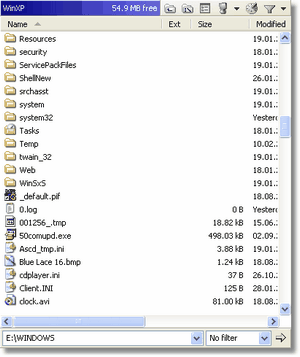
A folder window
Once you have found the files you want to copy, you need to select them. This can be accomplished in variety of ways. If you use the Magellan Explorer default you only need to click on the files you want to copy once.
To select multiple files in one go hold down the left mouse button over the first file and drag the mouse over the other files. De-selecting works the same way by clicking or holding down the mouse button on a selected file and dragging the mouse.
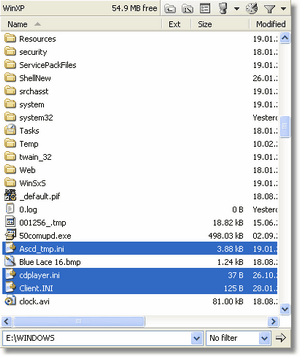
Selected files in a folder window
As you can see on the screenshot above, 3 of the files are selected.
The next step is to open the destination folder in the other folder window. Use the same procedure as you did when finding the source folder.
Once both the source and destination folder windows have been loaded, and files have been selected in the source window you must let Magellan Explorer know which window is the source. The window currently acting as the source window is the one with a colored (active) box, the label box, above the list view. The figure below illustrates what an active label box looks like.

An active label box
To activate the correct folder window click on the label box above it. You can also use the TAB key to switch the active folder window between the left and right window.
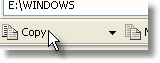
Copy button on toolbar
The final step is to click on copy in the Button Panel (as seen on the screenshot above).
How to open files
You open files in the same way as in Windows Explorer, by double clicking on their name.
How to delete files
First find the files using the same procedure as outlined under the How to copy text. Next select the files you want removed. Make sure only the files you want deleted are selected. Then click on the Delete button, by default placed between the Move and View buttons on the toolbar.
If you have selected more than one file or a folder you will be asked to confirm the operation.
Important: Once deleted it may be impossible to recover the files. Keep backups of your data!