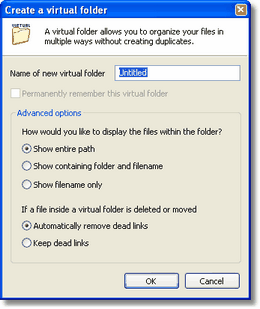
The Virtual Folder dialog
The dialog lets you assign a name to the virtual folder so that you can save it for later. Saving it is done by checking the Permanently remember this virtual folder check box. You can also choose how you wish the virtual folder to display filenames and whether files that no longer exist on you hard drive should be removed from the list when you open it.
To open previously saved virtual folders go to My Computer and then the Virtual Folders folder found there. Keep in mind that all opened virtual folders are available for the duration of a Magellan Explorer session, but only saved folders are available after a restart.
When using the Search tool to search for files it will open a Virtual Folder where it will place all the matching files.
To manually add files to a virtual folder simply use the Copy tool just as you would with any other folder. Removing files is performed similarly, using the Delete tool. You will be asked whether the files should only be removed from the virtual folder or actually deleted from disk also.
Related topics
|
|
| Step by Step Guide: Adding tools to the toolbar
|
| Step by Step Guide: Adding tools to the Quick/Navigation bar
|
| Step by Step Guide: Adding or modifying a keyboard shortcut
|