Split
Splitting files in Magellan Explorer is very straight forward. Simply select the file you wish to split, multiple files can also be selected, and click the Split tool. You will be presented with the dialog shown below.
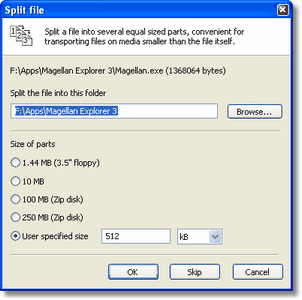
The Split file dialog
The dialog lets you choose where to place the split file and the size of the split parts. By default the file is placed in the same folder as the file you are about to split as seen above where we attempt to split Magellan.exe contained in the Magellan Explorer 3 folder. The size of the parts can either be selected from one of the presents or a custom value can be entered. The custom value can be expressed as either bytes, kilobytes or megabytes using the drop down box.
As an example, consider what happens if we click OK in the dialog above. The file will now be split into files no larger than 512kB each. The image below shows the generated files Magellan.exe.000, Magellan.exe.001 and Magellan.exe.002 next to the original file Magellan.exe.
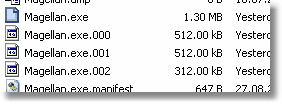
Result of splitting Magellan.exe into 512kB parts
Join
To re-join previously split files you use the Join tool. You can either first select all the parts of a previously split file or simply start the tool with no files selected. You can then add the parts you wish to join.
Note: You are responsible for locating all the parts and placing them in the correct order yourself. Magellan will not do this automatically, but it will try to guess to save you the work.
The Join dialog is shown below with all the files we previously split added to the file list on the left.
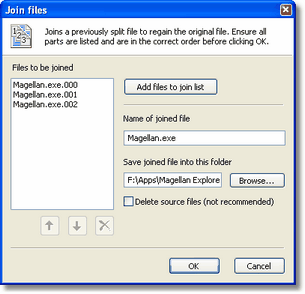
The Join files dialog
You can choose the filename for the joined file as well as the folder to save it in. By default it is the current folder in the active folder window. You may also choose to have the source files, the parts, deleted automatically after joining.
Related topics
|
|
| Step by Step Guide: Adding tools to the toolbar
|
| Step by Step Guide: Adding tools to the Quick/Navigation bar
|
| Step by Step Guide: Adding or modifying a keyboard shortcut
|