Search
When you invoke the Search tool you are presented with the Search dialog. The Search dialog has both a basic and an advanced view. The basic view is shown below.
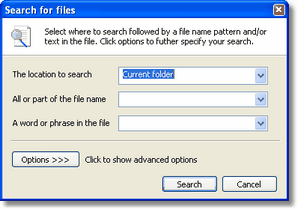
The Search dialog - Basic mode
The Location to search
This field lets you narrow the search area. You can choose to search only in e.g. My Documents, on The Desktop or on a certain drive. Furthermore, the following search areas are also available.
|
If you have selected any files, folders or drives in the active folder window
| |||
|
Searches only in the folder open in the active folder window.
| |||
|
Searches every folder on the hard drive.
| |||
|
Searches every disk local to your system (e.g. not network drives)
|
Finally you may choose to select Browse which lets you select a specific folder to search.
All or part of the file name
Specify the file name(s) of the file(s) you want to find using wild cards. You can list several names by separating them with either a comma or a semicolon.
A word of phrase in the file
If you want to limit your search to files that include a specific phrase or a word it is possible by typing it here. The spelling must be correct to yield any result and the use of wild cards are not allowed. Do not put quotes around phrases.
Note: This criteria will be ignored on FTP sites.
Search - Advanced mode
In addition to the basic options explained above there is also an advanced mode that lets you further refine your search. The advanced options are revealed by clicking on the Options button in the Search dialog, and are shown in the image below.
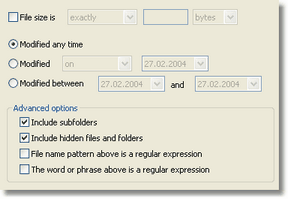
The Search dialog advanced options
File Size
You can limit your search to files that meet a certain file size criteria. You can choose to limit by files that are larger, smaller or the exact size you define. The size can be expressed in either bytes, kilobytes, megabytes or gigabytes by using the drop down.
Modification date & time
You may limit your search to files modified on a specific date, on relative to a date. There are two ways of doing this.
The first option lets you choose to filter on files that are modified on, before and after a specific date & time as well as today, this week, this month and this year.
The second option lets you specify two dates & times and only files modified between those two dates & times are matched.
Advanced options
|
With this option set the search will recurse into folders that are encountered.
| |||
|
You may choose to include hidden files & folders in the search
| |||
|
The file name pattern above can be expressed as a regular expression instead of a normal wild card pattern. Checking this box will allow that.
| |||
|
Same as above for word or phrase box above
|
Note: Defaults for some of these options can be set on the Search and filter page in the Miscellaneous preferences.
Once the search completes and if files have been found you will be presented by the Search Results dialog shown below.
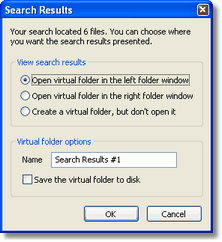
The Search Results dialog
In order to display the found files they must be opened in a virtual folder. You can choose to open it in either the left or right (or top or bottom depending on your layout) folder window or simply save it for later. You can also assign it a name and save it permanently in you virtual folder store.
Filter
The Filter tool allows you to reduce the number of files and folders shown in the folder window by filtering the files before display. Only files that match the filter is shown, other files are simply hidden from view. The Filter dialog can either be opened from the Filter tool or from the Filter menu in the View menu.
The Filter dialog is almost identical to the Search dialog explained above, and only the parts that differ will be explained here. The dialog in basic mode is shown below.
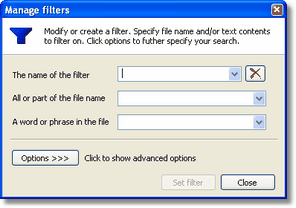
The Filter dialog - basic mode
In the basic mode, the only differencing factor is that the search location has been replaced by a filter name box and a delete button. This box lets you specify the name of the filter, since filters are saved. The drop down box lets you edit other filters you have previously created and the delete button will delete the selected filter.
Note: If you open the Filter dialog using the Quick Filter option you will not have to specify a filter name.
The advanced mode of the Filter dialog is identical to the Search dialog. The only difference being the Include sub folders option which now specify whether to display folders even when they do not match the filter criteria, or not.
When you have applied a filer it will be listed in the filter box next to the path box. To clear the filter either select No filter from that box, click on the Clear Filter tool in the quick bar or select No Filter from the Filter menu in the View menu.
Clear Filter
This tool clears any filter currently applied to the active folder window.
Related topics
|
|
| Step by Step Guide: Adding tools to the toolbar
|
| Step by Step Guide: Adding tools to the Quick/Navigation bar
|
| Step by Step Guide: Adding or modifying a keyboard shortcut
|