Rename
Renames the selected files or folders. A dialog box, shown below, is displayed prompting you to type in the new name of the file or folder. If you select more than one file/folder the dialog is displayed once for each file/folder. Click Cancel to cancel the entire operation and Skip to skip the current file/folder.
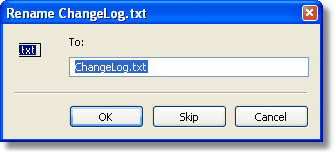
The Rename dialog
Tip: If you would like to rename a batch of files using wild cards or perform a more advanced renaming operation you can do this using the more powerful Group Rename tool described below.
Default shortcut key: F2
Group Rename
Renaming a group of files often requires a more advanced tool. The Group Rename tool is the answer. It supports 9 different rename modes to enable you to get the task done quickly and easily.
To use, first select the files you would like to rename using either the mouse or one of the selection tools, then invoke the Group Rename tool (available from the Tools menu in the default configuration). This will display the dialog shown below.
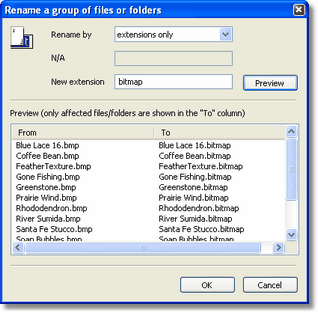
The Group Rename dialog
The dialog displays the files you have selected in the From column on the left. To perform a rename first select a rename mode from the drop down box, then fill one or both edit boxes (explained below) depending on the rename mode and finally click the Preview button. This will display the new names that will be assigned to the files in the To column on the right. Files not shown in the To column will be left untouched (i.e. same name as in the Front column). Once you are satisfied by the result click OK to have the rename operation performed.
The following rename modes, selectable from the drop down box in the dialog, are available.
Extension
The extension mode is the same as the old Group Rename tool from earlier versions of Magellan Explorer and allows you to change the extension of the selected files. Enter the new extension, without a leading period, in the New extension edit box. The image above shows an extension rename for all files to bitmap.
Wildcards
The wildcard mode allows you to specify two sets of wildcards, called the source pattern and target pattern for renaming a file. The source pattern must match the original name using normal wildcard matching rules. The target pattern must be similar and the non-wildcard portion of the source pattern is replace by that of the target pattern.
For example, given the source pattern *.htm and target pattern *.html will rename the file "index.htm" to "index.html", but leave a second file "download.jpg" untouched since it does not match the source wildcard.
Regular expressions
Regular expressions (regexps) offers a more advanced version of wildcards capable of matching any text. It can be used to make advanced rename operations. More information on regular expressions are available here.
Performing a regexp rename consists of two expressions, similar to the wildcard rename. The source expression matches the existing filename and specifies what part of that name should be captured, or remembered, and which parts must simply match a specified string. The second pattern performs the desired substitutions based on the matched, and possibly captured, parts from the source.
For example, renaming all files with .htm extensions to .html could be performed with the source pattern set to (.*)\.htm and the target pattern to \1.html. The \1 will be substituted with the contents of the first parenthesis from the source pattern. Subsequent parenthesis matches would be \2, \3 etc. The \0 token will be substituted with the entire match.
Regular expressions (global)
Global regular expressions work the same as the regexps above, but can substitute several times within a single filename. Consider the regexps (.*)_(.*) (source) and \1-\2 (target). Using the normal regular expression mode this would replace the first occurrence of a _ in the filename with a -. Using global regexps then all occurrences would be substituted.
Uppercasing filename
This mode simply uppercases all letters in the filename and extension.
Uppercasing extension only
Same as above, except for the extensions which is left alone.
Lowercasing filename
Similarly, this mode lowercases all letters in the filename and extension.
Lowercasing extension only
Again, same as above, but without changing the extension.
Capitalize filename
The final option will capitalize all separate words that occur in the filename. Given the two files "nice_file.txt" and "nice file2.txt" this option will convert them to Nice "File.txt" and "Nice file2.txt".
Tip: The best way to familiarize yourself with the features of the Group Rename tool is to simply play around with it and use the Preview button. No files will ever be renamed until you click OK.
Related topics
|
|
| Step by Step Guide: Adding tools to the toolbar
|
| Step by Step Guide: Adding tools to the Quick/Navigation bar
|
| Step by Step Guide: Adding or modifying a keyboard shortcut
|