For more information on the quick bar see the Toolbars section.
Insert and remove items
To insert a tool select it from the tree view on the left and click on Add to quick bar. The added tool will be displayed on the quick bar preview on the right.
If you want to remove something from the quick bar simply select it on the preview and click on the delete (x) button.
Layout
Modifying the order of the items on your quick bar is simple. Select the item you want to move and click on either the left or right arrow buttons. The image below helps illustrate this.
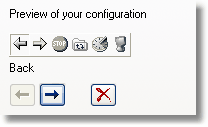
Quick bar layout
Any of the following options can be selected.
| · | Enable the Quick Bar - Toggles the display of the quick bar on/off
|
| · | Enable tooltips - Displays tool tips when you hold the mouse over the button
|
| · | Enable dynamic items - The contens of the quickbar automatically changes based on what folder is viewed
|
Tip: The dynamic Quick Bar feature enables a context sensitive Quick Bar. In addition to displaying the tools you have selected certain other tools may also be displayed. These include:
| · | Filter when the current folder supports having a filter applied
|
|
|
| · | Clear Filter when a filter is active
|
|
|
| · | FTP Disconnect when connected to an FTP server
|
|
|
| · | Install, Checkout and Extract To when viewing an archive
|