Custom tools
Previous  Top  Next

The Custom tools preferences page is accessed by selecting Options, followed by Preferences and finally Tools and toolbars from the main menu bar. Then click on the Custom tools tab at the top of the preferences dialog.

Please note that this features is only available in the licensed full version. More information about this can be found in the Bonus features
topic. Information on how to purchase a full version license is available in the Order information section.

Magellan Explorer gives you the ability to integrate your existing tools into the Magellan Explorer interface. Please note that you have to add the tool to a toolbar or the tools menu in order to access it (it will not be available from the Tools menu). See the Step by step guides for more information on how to do this.

Add

Click on add to create a new Tool. The trial version is limited to 3 tools, while in the full version one can have up to a 100 custom tools.

Command

Please specify the path of the application you want to run, or use the browse button to select it.

Arguments

The following substitutions can be used in the Arguments box:

%fn
Filename
%FN
Filename with full path
%ff
Filename without extension
%FF
Filename without extension with full path
%fe
Filename extension (without ".")
%sp
Source folder path
%tp
Target folder path
%rs
String requester
%rf
File requester
%rd
Folder requester
%%
Percent sign


Start folder

You can choose to start the application/tool either from the active folder window or the destination folder window. If you use the latter option it is important that you use %FN (full path), otherwise the tool won't find the files.

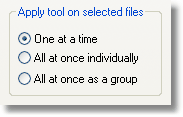
Apply tool on selected files


This tool deals with how any selected files should be treated.

·One at a time - Use this option if you want the tool to open the files one at a time, in series. I.e., the tool will be opened with the first file, and when you close the tool it will open again with the second file and so on.  

·All at once (individually) - This will start the tool once for each file in parallel. E.g. if 5 files were selected the tool will be launched 5 times (simultaneously) each with one of the files.  

·All at once (as a group) - By using this option the tool will only be started once and given all the files as arguments.  

Tip: If your tool does not care about the selected files and you only wish to launch an external application then check the third All at once (as a group) option. Make sure you also select Ignore selection, described below.
customtools_application

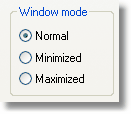
Window mode

·Normal - The window opened by the external program is shown in normal state, neither maximized nor minimized.  

·Minimized - The window opened is minimized (hidden).  

·Maximized - The window opened is maximized, covering the whole screen.  

Note: For most "batch" like tools it makes sense to use minimized to make it blend more seamlessly with Magellan Explorer. On tools that require user interaction with the started program you will typically choose normal or maximized.
customtools_windowmode

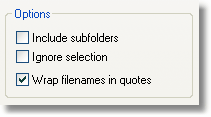
Options

The following options deals with how files and folders are passed on to the application. Correctly setting these options are vital to getting the desired result from your tool.

·Include sub folders - Checking this option will include selected folders, but not the files inside them (non-recursive). Leaving it unchecked will only include files.  

·Ignore selection - This will start the application without any files as argument regardless of whether any were selected. If you did not make use of any of the %f or %F options in the command line then this option should be checked.  

·Wrap filenames in quotes - By checking this filenames will be sent to the application in quotes (e.g. "filename.txt"). This may be required when working with files containing spaces, hence it should usually be checked.  
customtools_options