Backup
Enables you to easily backup your files using the Microsoft supplied backup utility. Available on Windows NT/2000/XP only.
Check Out (archives only)
When you select Checkout, Magellan Explorer will create a temporary folder and extract all the files within the open archive to this folder. This is convenient if you need to execute a program contained inside an archive and the install feature above is not sufficient (e.g. no file named install.exe or setup.exe).
Note: Any changes you make to these extracted files will not be automatically updated in the archive. You will have to update it manually.
Command Prompt
Opens a command line window with the path from the active folder window.
Defrag
De-fragments you hard drive partitions for increased performance.
Describe
If you have turned on file comments on the General page in the Folder preferences Magellan Explorer can attach a comment to a file. These are shown in the right-most column in the folder window.
By selecting a file and clicking on Describe you will be asked to enter a comment. The comment will be stored in the description file (the name of the file can also be configured in the Preferences).
Disconnect Network Drive
Allows you to disconnect a previously mapped network drive. More information can be found by pressing F1 once you have opened the dialog.
Extract (archives only)
The Extract tool extracts can be used to extract archives without first opening them. This allows you to extract multiple archives in one go by selecting them and invoking this tool.
Extract To (archives only)
Similar to the Extract tool, but allows you to choose a destination folder for the archives, rather than using the other folder window as destination folder.
Folder Size
Calculates the space the selected folders, and their respective sub folders, occupy on the hard drive and displays the size in the Size column.
Note: Folder Size will add the size of hidden and system files to the total even if you have chosen not to display them.
It does not work on folders inside an archive.
Default shortcut key: SPACE
Format
Formats a disk in a drive of your choosing.
Install (archives only)
Today many applications are distributed in compressed form inside archives. The Install feature makes it easy to setup such programs on your system by automatically extracting the archive to a temporary folder and starting the installer without the need to first extract the archive.
Note: The archive should contain a file called either install.exe or setup.exe, otherwise this feature will not be available.
Map Network Drive
Maps a network drive as logical disk with a drive letter on your system. More information can be found by pressing F1 once you have opened the dialog.
New folder
Displays this dialog box, shown below, asking you for the name of the new folder. It is created in the folder/drive displayed in the active folder window.
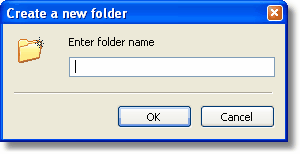
The New Folder dialog
Default shortcut key: INSERT
Scandisk
Checks for errors on a hard drive partition of your choosing. Available on Windows 95/98/ME only.
Views
Displays a drop down menu listing available views. This is the same as the views shown in the view menu.
Quit
Closes the application. If there are any file operations still ongoing you will be asked to confirm.
Note: Clicking on the X in the upper right corner of the window have the same affect.
Default shortcut key: ALT+F4
Sysinfo
Related topics
|
|
| Step by Step Guide: Adding tools to the toolbar
|
| Step by Step Guide: Adding tools to the Quick/Navigation bar
|
| Step by Step Guide: Adding or modifying a keyboard shortcut
|