By default Magellan Explorer will open archives as if they were folders. This means that when you double click on a file with a supported archive extension the application you previously used (if any) will not be started. Instead the folder will be shown inside the folder window just as if it was a normal folder.
When inside an archive you may use most of the tools in Magellan Explorer on the contained files/folders as if they were located in a real folder and not an archive. In other words, Magellan Explorer lets you forget about archives and simply access them as folders.
Example: To extract a file select it and click on Copy. The file will then be placed in the destination folder.
If you prefer to continue using your old archive management application you may do so by changing the settings in the Archive group in the Preferences.
Creating new archives
To create a new archive open the archive menu and select an archive format from the Create new archive sub menu. This opens the New Archive dialog, shown below in basic mode. This mode enables you to pick a name for the new archive as well as selecting a folder to place the archive. By default the folder open in the active folder window is used.
If you would like the currently selected files (in the active folder window) to be automatically added to the archive when you click Create archive then check the Add selected files and folders to the archive check box.
After the archive is created, it will be opened in the active folder window. If you chose to have files added to the archive then these will be copied in the background and the folder window will be refreshed once copying is complete.
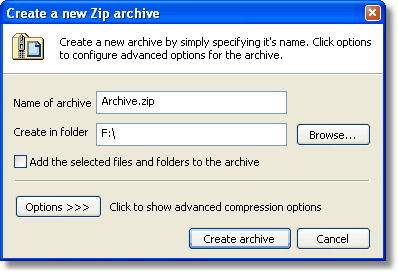
New Archive dialog
To access the advanced mode of this dialog click the Options button. This will expand the dialog to expose the options shown below.

Advanced new archive options
Compression level
The compression level is a tradeoff between speed and size. If you set the compression level to None or a low value then copying files to and from the archive will be faster, but the archive size larger. The compression level slider has 10 discrete steps ranging from the leftmost (0) to the rightmost (9). The default compression is 6 which offers a good tradeoff between speed and size.
Modified time and date
You may specify which date Magellan Explorer should set on the archive after files have been copied into it. This option is only available for some archive formats.
Password protection (ZIP only)
You may choose to password protect (encrypt) your archives. Click on the Set password button to type in your desired password (max 69 characters). Please be aware that the password is case sensitive.
Note: The encryption algorithm used by Magellan Explorer is the same one used by the PKZIP 2.04g program. This type of encryption can resist attacks by amateurs if the password is well chosen and long enough (at least 16 characters) but it will probably not resist attacks by determined users or experts. Therefore, we suggest that you always use long passwords, and when possible, do not rely solely on this encryption system to protect sensitive data.
Spanning (ZIP only)
You may choose to have the resulting archive divided into smaller parts to make distribution easier (e.g. copying onto floppy disks or similar). By specifying a size in kB either by selecting a pre-defined size from the list or entering it manually then Magellan Explorer will ensure that no single file exceeds this size.
Note: In order to extract the archive you will need all individual files available.