For more information on the navigation bar see the Toolbars section.
Insert and remove items
To insert a tool select it from the tree view on the left and click on Add to navigation bar. The added tool will be displayed on the navigation bar preview on the right.
If you want to remove something from the navigation bar simply select it on the preview and click on the delete (x) button.
Layout
Modifying the order of the items on your navigation bar is simple. Select the item you want to move and click on either the left or right arrow buttons. The image below helps illustrate this.
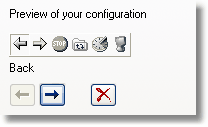
Navigation bar layout
Any of the following options can be selected.
| · | Enable the Navigation Bar - Toggles the display of the navigation bar on/off
|
| · | Labels - Enables display of tool labels
|
| · | Tool tips - Displays tool tips when you hold the mouse over a button
|
One of the following icon modes can be selected.
| · | Large icons - Displays large 24x24 icons
|
| · | Small icons - Displays small 16x16 icons
|
| · | No icons - Display no icons on the navigation bar. Implies label display.
|