Attribute
The Attribute tool displays a dialog, shown below, contain the following general information about the selected file.
| · | File or folder location
|
| · | The file type
|
| · | The file size (unless it is a folder)
|
| · | The file or folder attributes
|
| · | The creation, modification and last access times
|
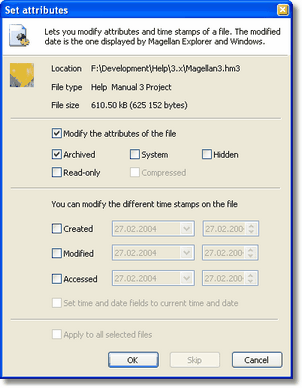
The Set Attributes dialog
You can alter either the attributes, one or more of the times & dates, or both. To alter the attributes make sure Modify the attributes of the file is selected and check the attributes you wish to set. Clear those you wish to unset.
Altering a date & time is done similarly by checking the appropriate check box next to the item you wish to change. Click on the date to open the calendar shown below to allow easy selection of a new date. Changing the time is done by either entering it directly or using the small up/down arrows.
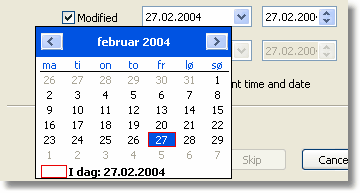
Changing the modified date of a file
To set the date & time to the current date & time you can use the check box at the bottom marked Set time and date fields to current time and date. This saves you the trouble of having to do this manually. Please not that if you modify multiple time & date fields for the same file in one go and this option is selected then it will apply to all those fields.
When done click on OK to commit the changes or Cancel to discard the changes. If you had more than one file selected use Skip to skip the current file (and not save the changes) or Cancel to skip all the following files. Previously modified files will not be undone if you choose Cancel however.
Attribute on FTP sites
If you use the Attribute function on files/folders placed on a remote FTP system a slightly different version of the dialog, shown below, is used. This dialogs lets you set permissions, rather than attributes. Those familiar with the UNIX tool chmod will already be familiar with this.

The Set Attributes dialog for FTP folders
Assuming you have write access to the file you may change who should be allowed to read, write and/or execute the file/folder by clicking on the check marks. You can also change the permissions by typing in the octal number in the edit box.
For ease of use the three most common permission levels are instantly accessible as Private, Public and Open through the radio buttons at the top half of the dialog. Please note that a Public file has the Read permission set (744) while a folder has both Read and Execute (755).
Group Attribute
This tool work similar to the way attributes are set on multiple files/folders in Windows Explorer. The dialog is shown below.
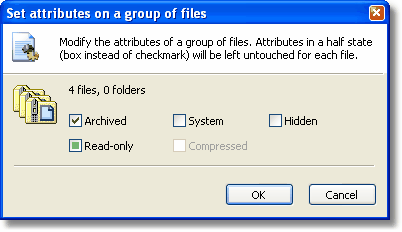
The Group Attribute dialog
The check boxes have three states as outlined below.
| · | Checked - All the files and folders selected have this attribute set
|
| · | Unchecked - None of the files and folders selected have this attribute set
|
| · | Square/grayed - Some of the files and folder selected have this attribute set
|
This enables you to set/clear certain attributes (by checking or unchecking them) while leaving others untouched (by leaving them in the square state as seen in the above image for the Read-Only attribute).
Group Attribute on FTP sites
This works similar to on local files, except the attributes are replaced by permissions as explained above.
Related topics
|
|
| Step by Step Guide: Adding tools to the toolbar
|
| Step by Step Guide: Adding tools to the Quick/Navigation bar
|
| Step by Step Guide: Adding or modifying a keyboard shortcut
|