The navigation bar
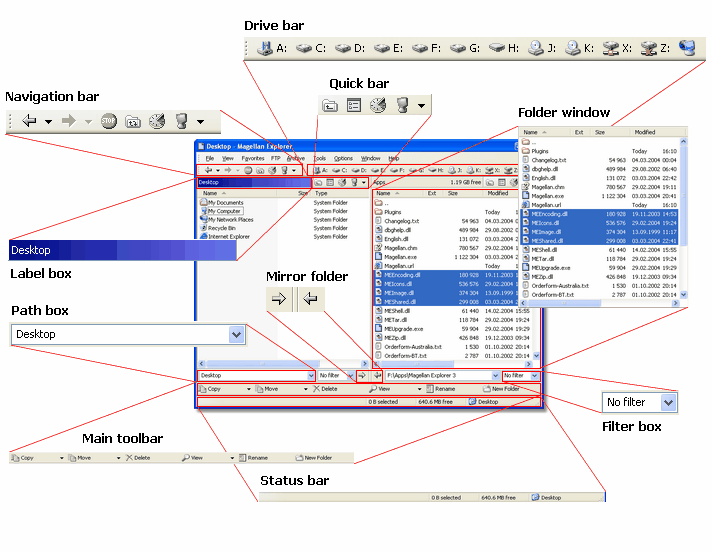
The navigation bar is situated below the main menu on the left hand side. It offers easy web browser like navigation buttons such as back and forward buttons with drop down history menus as well as a global history, stop and refresh buttons and the my computer button. The entire contents of the bar as well as its appearance can be configured in the preferences and the position can be changed by dragging the bar.
The drive bar
The drive bar is situated to the right of the navigation bar and provides quick access to all your local and network drives. You can configure which drives should be shown as well as its appearance in the preferences. The position can also be changed by dragging the bar.
The folder window
The folder window displays the files and folders within a local or network folder, an archive or an FTP site. By default two folder windows are shown. You can choose to also display a tree view to the left of the folder window as well as changing the positions of the windows relative to each other from the Window menu.
The label box
The label boxes are situated above the folder windows and displays the label of the folder window as well as the amount of free disk space, if applicable. The main task of the label box is to indicate which folder window is active (highlighted label box). The active folder window is the source of all file operations and the inactive serves as the destination.
The quick bar
The quick bars are situated to the right of the label boxes, one for each folder window. The purpose of the quick bar is to give easy access to a limited amount of tools for the folder window below. Whereas the other toolbars work primarily on the active folder window the quick bar always applies to the folder window below, regardless of which folder window is active.
The contents of the quick bar can be customized completely. Furthermore, the quick bar can optionally adapt to the type of folder displayed below and adjust the displayed items automatically.
The path box
The path boxes are displayed below each folder window. They display the currently open folder location as well as allowing input of a new path to change the current folder. Auto completion is supported when entering paths. A drop down list is also available to easily access the local and network folders.
The filter box
The filter boxes are situated to the right of the path boxes and can be used to quickly filter the contents of the current folder by filename patterns. This is done by entering the desired pattern. You can also select a pre-configured filter from the drop down list.
The mirror folder buttons
These two buttons allow you to load the folder displayed in one folder window into the other folder window. If you for instance have C:\ displayed in the left folder window you can click the right arrow and this folder will now also be displayed in the right folder window.
The main toolbar
The main toolbar is displayed at the bottom of the main window just above the status bar. By default a only a small subset of tools consisting of the most frequently used tools are displayed. Other tools are available from the Tools menu. However, the tools displayed on this bar can be configured and the size of the bar, both the number of rows and columns, can be changed.
The status bar
The status bar displays status messages as well as the size of the selected files, the amount of free disk space and the current folder name of the active folder window.
Available sections
The following sections are available to help you get started with Magellan Explorer as quickly as possible.
| · | Selecting files and folders
|
| · | Using the built in tools
|
| · | Working with archives
|
| · | Organizing favorites
|
| · | Customizing folders
|