Use this tool when you want to connect to an FTP site. You will be presented with the Quick Connect dialog shown below.
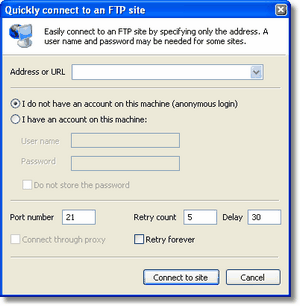
The FTP Quick Connect dialog
A description of the following elements follows.
Address
The address of the site (e.g. enriva.com). You may also specify it using the ftp://enriva.com format.
Anonymous vs. user specific login
Most FTP sites offer you to log on even if you don't have an account on the particular site. This is called Anonymous login. If you have an account select the second option and enter you user name and password.
The check box lets you tell Magellan Explorer not to store the password for security reasons. Magellan Explorer will "encrypt" the password before it's saved to disk. The algorithm used is not very secure and is only meant to keep the password from appearing as clear text.
Port number
You may configure the port the connection should use. Most normal FTP sites use port 21. If you are not familiar with ports it is recommended that you leave this value to its default number.
Retries
If you for some reason are unable to connect to a site (it is busy etc) Magellan Explorer may try to connect again either a fixed number of times or infinitely. You may also specify how long Magellan Explorer should wait before trying again.
Please note that setting the delay to a low value and the number of retires to a high number or infinitely (also called hammering) is not considered to be "good nettiquette" and may provoke a reaction from the FTP site maintainer.
Connect through a proxy
If you have configured a proxy on the Proxy page in the FTP preferences you may choose to use it when connecting by checking this check box,
Tip: To avoid retyping all the information for sites you frequent it is recommended that you add your favorite sites to your site manager after you have logged in. See below for details.
Tip: Writing ftp://ftp.sitename.com in the Path Box will bring up the FTP Quick Connect dialog.
FTP Disconnect
Click on this tool will disconnect you from the ftp site in the active folder window.
FTP Site Manager
The Site Manager lets you easily manage your FTP sites in one place. There are several ways to add a new site to the site manager. The easiest is to simply connect to it using the FTP Connect tool and then choose Add current site to site manager from either the FTP menu or the label box context menu. The other alternative is to open the Site Manager and click the New Site button. Either way will open the Add/Edit Site. If opened using the former method then most fields will already be filled out and you need only enter a name for the site.
This dialog lets you fill out server details similar to what is found in the Quick Connect dialog above as well as a nick name for the site. This can be anything you like.
The options page contain several advanced options that you can set individually for each site in the Site Manager. By default they will be set to the same as the FTP preferences when you create the site. The options on this page are the same, except for a few, as those found on the Advanced page in the FTP preferences.
Once you have added the site you can connect to it either directly from the Site Manager dialog or from the Sites submenu in the FTP menu.
Related topics
|
|
| Step by Step Guide: Adding tools to the toolbar
|
| Step by Step Guide: Adding tools to the Quick/Navigation bar
|
| Step by Step Guide: Adding or modifying a keyboard shortcut
|