The Folder Compare tool, known as Folder Synchronize in Magellan Explorer versions prior to 3.0, will select files according to criteria you define. The dialog is shown below.
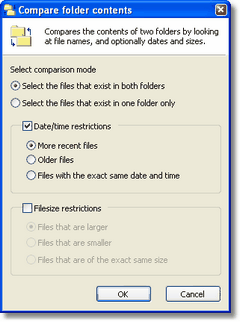
The Folder Compare dialog
The tool provides two main options, Select files that exists in both folders and Select files that exists in one folder only.
The first option allows you to set which criteria should be used to select files. Files matching the criteria will then be selected in the active folder window. For instance you may want to select files with a newer date/time and then copy them manually to the destination folder afterwards.
The second option makes Magellan Explorer select files in both folder windows that do not have a matching file, i.e. a file with the same name, in the opposite folder window. Thus this function select "unique" files that exist only in one of the two folder windows.
Note: Please note that it is necessary to use either a dual list view or explorer mode to use this tool.
Folder Synchronize
The Folder Synchronize tool is a full blown synchronization tool that not only determines what files to synchronized, but also synchronizes them for you. To use, open the two folders you wish to synchronize, one in each folder window. You may also use the Browse buttons in the dialog to select the folders.
The next step is to determine what synchronization mode to use. The following modes are available.
Synchronize from source to destination only
This mode will copy new and modified files from the source to the destination folder.
Synchronize from source to destination and delete files not present in the source folder
Same as above, but files that exist only in the destination folder and not in the source folder are removed (from the destination folder). This is typically used to ensure the destination folder is identical to the source folder.
Bi-directional synchronization. Both folders are treated as both source and destination
This mode works similar to the first mode, but will reverse directions afterwards and ensure new or modified files in the destination folder are also copied to the source folder. Consider it a merging the two folders to both folders.
After deciding on the synchronization mode you can adjust some options that adjusts certain aspects of the synchronize operation. They are the following.
Overwrite options
You can choose to be prompted when an overwrite is to take place, automatically overwrite or never overwrite.
Prompt before deleting files
This option will give you a confirmation prompt before each file deleting. It is the second synchronize mode.
Display file copy log on completion
By checking this option a complete log of all files copied and deleted are shown upon completion of the synchronization.
Process sub folders
Determines whether only files in the current folders are affected, or whether folders are traversed recursively.
Related topics
|
|
| Step by Step Guide: Adding tools to the toolbar
|
| Step by Step Guide: Adding tools to the Quick/Navigation bar
|
| Step by Step Guide: Adding or modifying a keyboard shortcut
|