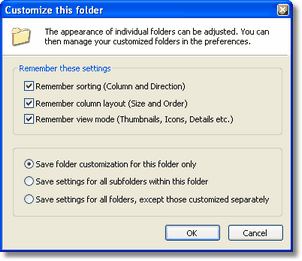
Customize Folder dialog
To customize a folder, first navigate to the folder you wish to customize. Then, based on how you want the folder to look, change the view mode from the view menu change the column sorting by clicking on the desired column to sort by and resize the columns as you like.
Once you have the folder set as you want it open the Customize Folder dialog from the view menu and check the options you want remembered. The last step is to decide what folders should be affected by this layout. You can choose between saving just the open folder, the open folder and any sub folders or all folders (e.g. make this the default layout).
Tip: Even though you customize a folder to include its sub folders, you can still customize any of the sub folders separately should you wish to.
Note: By default Magellan Explorer remembers the last folder layout used and applies that to any folder you load, except those explicitly configured using this dialog. The Save settings for all folder option is therefore not available, unless this feature has been disabled from the Customized Folders section in the Folder Windows preferences.