Drag & drop
Just like in Windows Explorer you can drag & drop files in Magellan Explorer also. By default, dragging with the right mouse button will present you with a drop menu allowing you to choose the action to be taken, usually copy or move, whereas dragging with the left mouse button will either copy or move depending on your settings in the Defaults page in the User Interface preferences.
Copy/Move
The second way to copy/move files is by using the Copy/Move tool. Depending on the window layout the behavior of this tool varies.
Dual window layout
The Copy/Move tool copies/moves all the selected files and folders from the active folder window to the destination folder. If the active folder window contains an archive and not a folder, the copy operation extracts the selected files/folders into the destination folder. Similarly, if it is an FTP folder, the files/folders are downloaded into the destination folder.
Single window layout
Copying/moving files in a single window layout works the same as copy & paste (copy) or cut & paste (move).
Step 1: Select the files you want to copy or move.
Step 2: Right click to get the context menu, and choose copy/move or click on the Copy/Move tool on the toolbar.
Step 3: Open the destination folder and right click on the label box. Choose Paste from the menu.
Default shortcut keys: CTRL+A (copy) and CTRL+M (move)
Copy As/Move As
The Copy As/Move As tool is a slight variation on the Copy/Move tool and enables you to copy/move and rename files/folders in one go.
Dual window layout
Copies/Moves all the selected files and folders from the active folder window to the destination folder and gives them a new name. A dialog, shown below, is displayed for each file asking for the new name. When copying folders with the Copy As/Move As tool you will be prompted for a new name for the base name of the folder, but not files and folders contained within. In other words exactly like renaming a folder after copying/moving it.
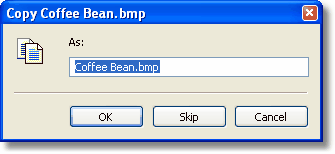
The Copy As dialog
Not supported, a normal copy/move will be performed as outlined above.
There is no default keyboard shortcut, but you may configure one on the Keyboard Shortcuts tab in the User Interface preferences.
Clone
The Clone tool makes another copy of a file/folder in the same containing folder as the original. A dialog box, shown below, is displayed asking for the name of the new file or folder.
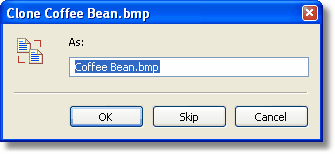
The Clone dialog
Tip: Use this tool for making quick backup copies of files within the same folder by simply appending .bak or similar to the filename.
Related topics
| Step by Step Guide: Adding tools to the toolbar
|
| Step by Step Guide: Adding tools to the Quick/Navigation bar
|
| Step by Step Guide: Adding or modifying a keyboard shortcut
|