You can change the colors and fonts of many aspects in Magellan Explorer from this configuration page. The image below explains the different sections of the dialog.
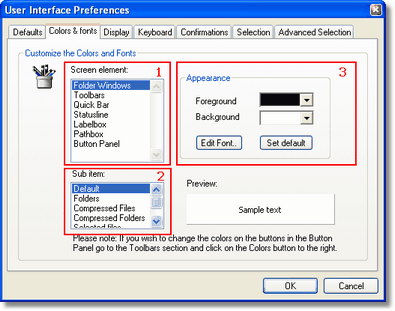
To change the color or font of something in Magellan Explorer follow these simple steps (illustrated on the image).
Step 1: Choose the general element you wish to configure in the screen element list.
Step 2: Next choose which sub item you want to configure in the second list.
Step 3: Configure the item to you liking by altering the foreground and background color and font.
Your settings for the selected item is displayed in the preview box.
Note: Please note that you cannot change all three attributes (foreground color, background color and font) on all the items.